 COME
COMEWhen COME Version Information Differs Between Screens
If two COME screens show different version information, identify what each value describes before deciding which package to use. A current app status, release number and saved-file label are not interchangeable.
Label both observations
Write down each value, the screen where it appeared and when you read it. Settings may show an update status, Android may show the installed version, and a browser entry may show only a filename. Those can coexist without describing the same field.
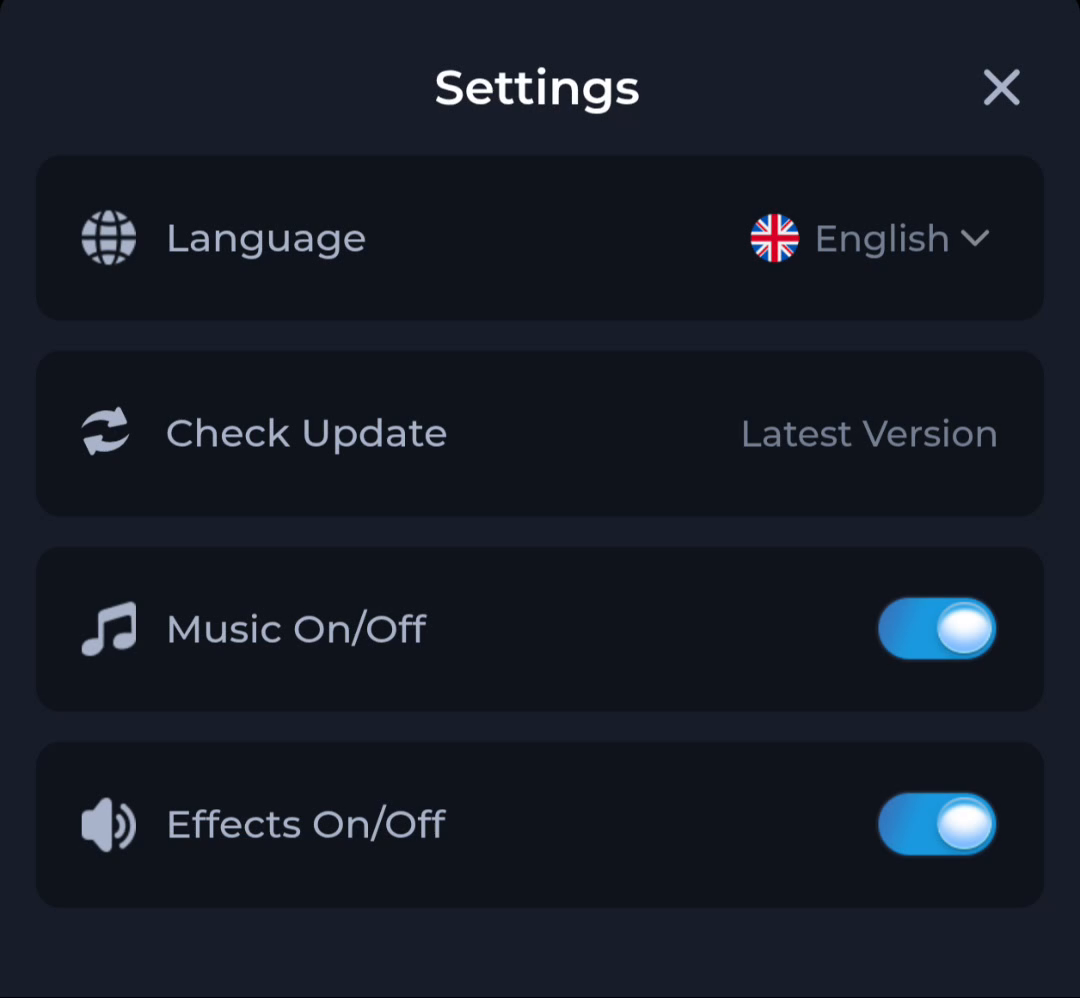
Compare the current offer
Return to the app entry and read the release information currently offered. Do not infer chronology from file size or a browser-added suffix. A check date also should not be treated as a release date unless the page labels it that way.
Preserve the existing installation
If the discrepancy remains unclear, use the service’s current help with the two values and their context. Do not remove the working app, clear account data or force an install to test which value is right.
A useful next step
Use the download page for the current route once the mismatch is understood. Compare the installed state again after any accepted update.